Screens
Command Center
One queue for everything that needs a decision: releases to review, access requests, your inbox, drafts, exceptions and Brand settings.
What it’s for
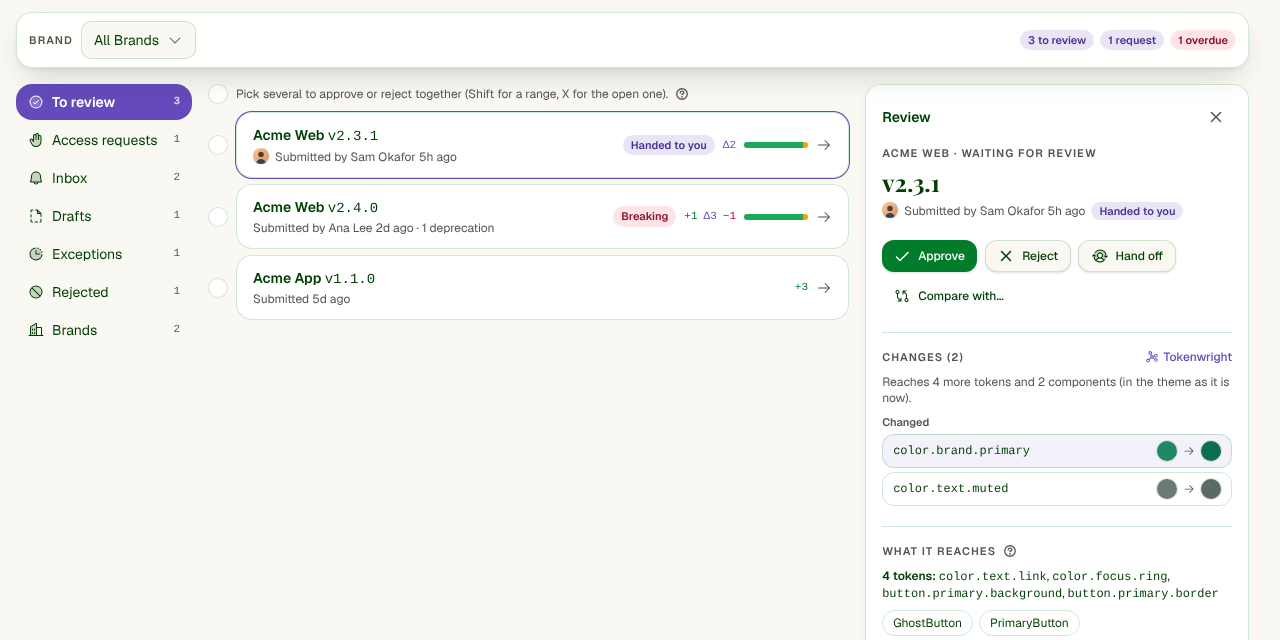
The Command Center collects everything waiting for someone across every Brand you can see, so nothing slips. The list on the left switches between sections; the queue in the middle shows what’s in one; the panel on the right shows the item you pick, with what you can do about it.
Use the Brand picker at the top to look at one Brand only.
The sections
- To review
- Releases waiting for a decision, newest first. Ones handed to you are marked Handed to you; ones that remove a token are marked Breaking.
- Access requests
- People outside the workspace asking to see a Brand through its share link.
- Inbox
- Your notifications: a release waiting, handed to you, rejected or published, and new comments on threads you follow.
- Drafts
- Releases started but not yet sent for review.
- Exceptions
- Releases published without the normal review, with how long until each one expires.
- Rejected
- Releases that were turned down, with the reason, so they can be fixed and sent again.
- Brands
- Each Brand’s settings: what it builds on, and its share link.
On a phone, the Command Center is for reviewing on the go: To review, Access requests and Inbox. The rest is on a computer.
Reviewing a release
Pick a release in To review. The panel shows:
- The changes: every token added, changed, renamed or removed, with old and new values side by side, in every mode.
- What it reaches: the other tokens that point at the changed ones, and the components that use them. A small change to one colour can reach a lot.
- Visual checks: your components drawn with the new tokens, in each mode, with anything that looks different flagged.
- Conversation: comments on the release. Follow the thread to be told about new ones.
Compare with… opens the release next to any other version of the Brand.
Approve, reject or hand off
- Approve publishes the release straight away. Exports, the API and agents start handing out the new values, and the person who proposed it is told.
- Reject needs a reason. The proposer sees it, and the release moves to Rejected.
- Hand off passes the review to a colleague by email, if you’re not the right person.
Good to know: Breaking releases (ones that remove a token) can only be approved by an Admin or Owner. Some workspaces also require a different person to approve than the one who proposed it; Stoaken tells you if that applies.
Once you decide, the release leaves the queue and the next one opens, so you can work through a queue without going back to the list.
Approving or rejecting several at once
On a computer, in To review, tick the circle beside each release you want (Shift-click picks a range, X picks the one that’s open). A bar appears: approve them all, or reject them all with one reason. Stoaken works through them one by one and shows how each went; any it can’t approve (a breaking one, say) are left for you.
Drafts and exceptions
Drafts are releases started but not yet sent for review: from the API, the CLI or an AI agent, from Resubmit as a patch, or when sending for review didn’t go through. Submit for review sends one to the reviewers.
Grant an exception (Admins only) publishes a draft without the normal review, for an emergency. It needs a reason and an expiry date, and you can add a plan for replacing it. Exceptions show everywhere the release appears, and turn red in Exceptions when they’re overdue. Replace one with a reviewed release before it expires.
Fixing a rejected release
In Rejected, the reason is shown with the release. Resubmit as a patch starts a new draft from it; fix what was raised on the Tokens page, then submit the draft for review.
Access requests
When someone opens a Brand’s share link, they ask for access with their name, email and an optional note. Their request appears here.
- Let them view: they can see the tokens, read only. They sign in with a code sent to their email.
- View and comment (Admins only): they can also comment on tokens.
- Deny: they can’t see anything.
Building one Brand on another
In Brands, a Brand can be set to build on another Brand in the same workspace. It inherits the parent’s token sets (and its parent’s), and its own sets override them. Use it for sub-brands that share most of their tokens. The change applies from the next release submitted.
Inbox
Notifications are emailed, and kept here too. If an email didn’t arrive, the item says so. Mark read clears one.
Keyboard
- J / K
- Next or previous item
- A
- Approve (then Enter to publish)
- R
- Reject with a reason
- D
- Hand off to a colleague
- X
- Pick for batch approve (To review)
- Esc
- Close the panel
Looking for the API, CLI or AI agents? They’re in the developer docs.