Screens
Tokens
See every token as it really looks, edit values, and save changes ready for review.
What it’s for
Tokens is where a Brand’s tokens are looked at and changed. Pick the Brand and token set at the top. Everyone who can see the Brand can look; Editors and above can change things.
Saving here is safe. Nothing reaches your products until a release is proposed and approved.
Specimen and Table
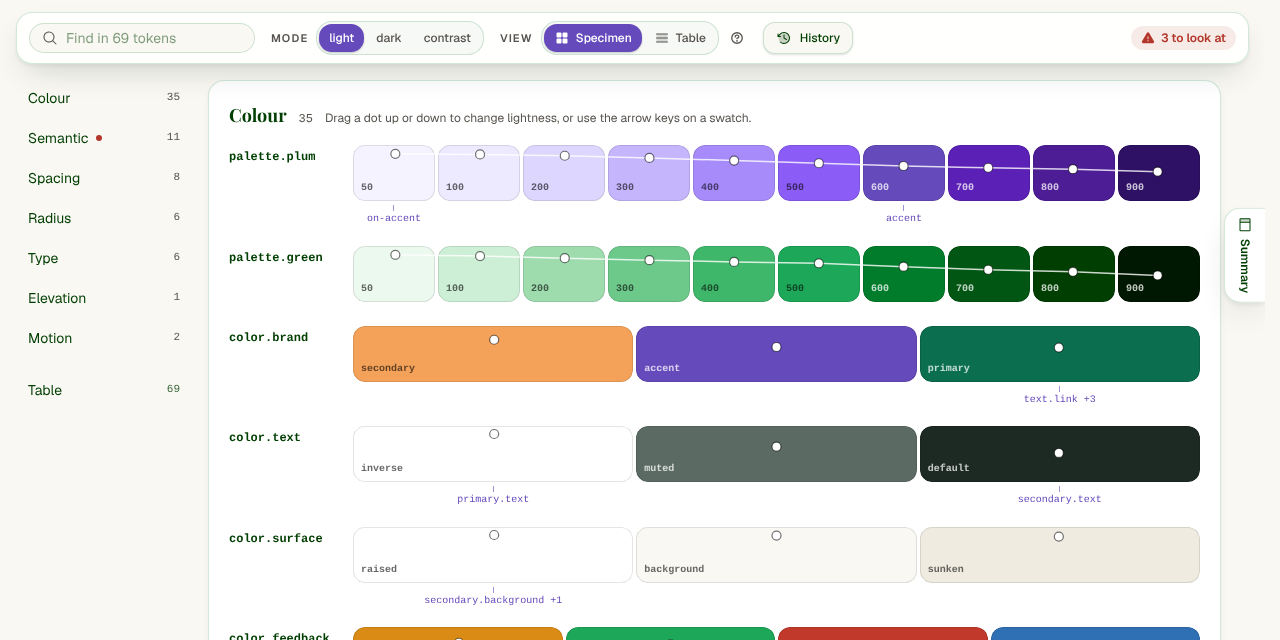
There are two ways to look at a set. Switch between them at the top of the page; Stoaken remembers your choice.
- Specimen
- Tokens drawn as what they are: colour swatches by lightness, spacing to scale, radii, type samples, shadows, motion curves you can play. Semantic pairs tokens like text and background, so you can check they work together.
- Table
- Every token as a row: name, value and type, grouped by path. Best for finding things, renaming, and changing many tokens at once.
Needs a look, on the right when nothing is selected, lists problems Stoaken found: text and background pairs with too little contrast, and aliases that point at a token that no longer exists. Click one to go to it.
Seeing each mode
If the theme has modes, such as light and dark, pick one at the top to see every token’s value in that mode. Press M to move to the next mode.
When a token is selected, In each mode in the inspector shows its value in every mode side by side, and lets you change one mode’s value without touching the others.
Changing a token
- Click a token (or select it and press Enter). The inspector opens on the right.
- Change its Value: type a new one, use the colour picker, or point it at another token so it follows that one.
- Add a Description to say what it’s for. People see it in Tokens, Tokenwright and exports.
In Specimen you can also change values directly: drag a colour dot up or down to make it lighter or darker, drag a spacing step, or use the arrow keys on a selected swatch (Shift for bigger steps).
Add a token creates a new one in this set. It starts in the group of the token you have selected.
Saving, and the tray
Every edit collects in a tray at the bottom of the page. It lists what you changed; click one to go back to it. Nothing is saved until you press Save.
- Undo all throws away every unsaved change.
- Right after saving, the message offers Undo for a short while, in case you saved by mistake.
- Once saved, the tray offers Propose a release so a reviewer can approve the change.
Good to know: If someone else saved the same set while you were editing, Stoaken stops and tells you, rather than overwrite their work. Reload the set, and make your change again on top of theirs.
Good to know: If a value doesn’t fit the design tokens format, the save is refused with the reason, and nothing changes.
History
History lists every save of the set, with who saved it and when. Open one to compare it with now, and restore it into the editor if you need to go back. Restoring doesn’t save by itself: you review the changes, then Save or Discard.
Find and replace
Find and replace changes a value everywhere it’s used in the set: a colour, the token that others point at, or a value as written. Stoaken lists every token that matches; untick any that should keep its value, then say what they become. The result lands in the tray like any other edit, so you can still undo before saving.
Changing many tokens at once
In the Table view, Ctrl-click (⌘-click on a Mac) tokens to pick them. Shift-click picks a range, Shift-click on a group picks the whole group, and Ctrl/⌘+A picks everything shown; Esc clears. A bar appears with what you can do to all of them:
- Move them to another group.
- Rename part of their names, such as
graytoneutral. Anything pointing at them follows. - Deprecate them, with a replacement if there is one (or Undeprecate ones already marked).
- Delete them. Stoaken warns you if anything still points at them.
Tip: Brought tokens in from Tailwind? The picker can select Tailwind defaults nothing uses in one go, so you can remove them together.
Deprecating a token
A token on its way out can be marked deprecated in the inspector’s Deprecation section, with the token to use instead and a note (such as “Removed in 3.0”). It keeps working, but Tokenwright, exports and AI agents flag it and point at the replacement, so teams can move off it before you remove it.
Keyboard
- Enter
- Open the selected token in the inspector
- ← →
- Next swatch (in the table: close or open a group)
- ↑ ↓
- Lighter or darker (Shift for bigger steps)
- M
- Next mode
- \
- Swap the sides of the Semantic comparison
- ?
- Every shortcut on this page
Looking for the API, CLI or AI agents? They’re in the developer docs.